Welcome to Theater
A quick start guide.
Last updated 10 months ago
Theater transforms your Apple Vision Pro into the ultimate personal cinema. This guide will help you get started with the app and explore its features.
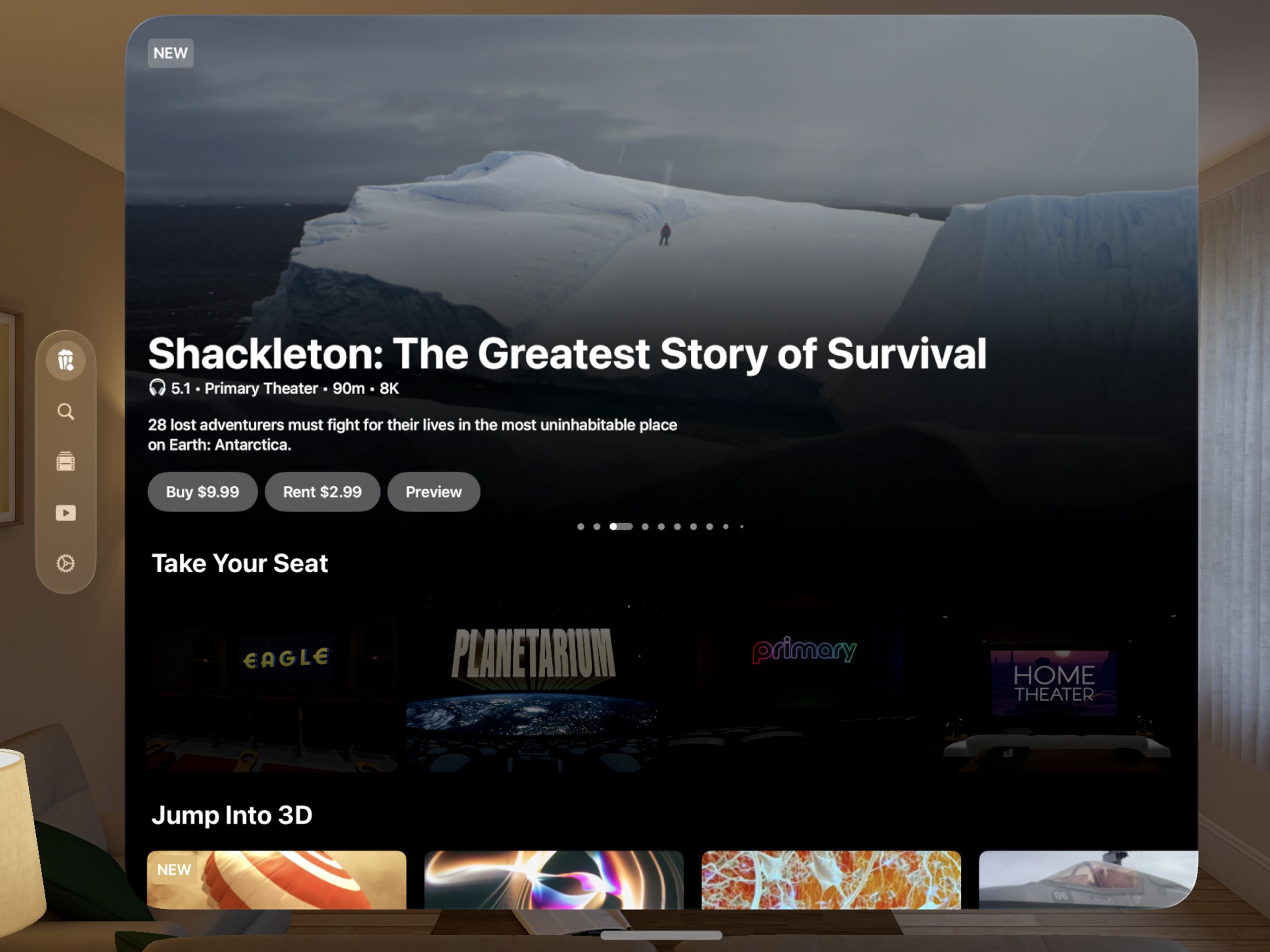
What’s Inside
Theater offers multiple immersive environments where you can enjoy your content:
Primary Theater: A modern, minimalist cinema experience
Planetarium: An epic fulldome venue
Home Theater: An intimate, luxury home theater setting
Eagle Theater: A recreation of the iconic Vidiots Eagle Theater
Nest: A recreation of a working recording studio in East LA.
Note: available for Theater original immersive albums.

Basic Navigation
Open Theater from your Apple Vision Pro home screen
Browse our collection of premium movies for rent or sale
Search by text or using keywords
Additional Content: Access YouTube, Plex, or your personal media library
Environment Selection: Choose your preferred theater environment
Settings: Customize your experience & find tips by tapping the ⚙️ “Gear” icon
For more details, visit Navigating the Theater Interface
First Steps
There are two ways to get started with Theater:
Option 1: Choose content first
Find the content you want to watch by browsing through sections in the 🍿 Lobby
You can preview all of the movies that are available for sale and rental.
When you’re ready, you can long press Watch to choose a different environment for watching your selection, if available.
Note: Fulldome movies can only be watched inside our Planetarium.
Option 2: Choose an environment first
Select your preferred theater environment from the main menu
Tap the 🎞️ “Film” icon on the playbar to access YouTube, Plex, or local media. Tap the 🍿 “Lobby” icon to browse premium and curated options. You can also tap the 🔎 “Magnifying Glass” icon to search by keywords or text.
Venue-specific options will have a custom icon. For example: in the Eagle theater, tapping the 𝓥 “V” icon allows you to watch any of the upcoming movies that will be played at this IRL theater.
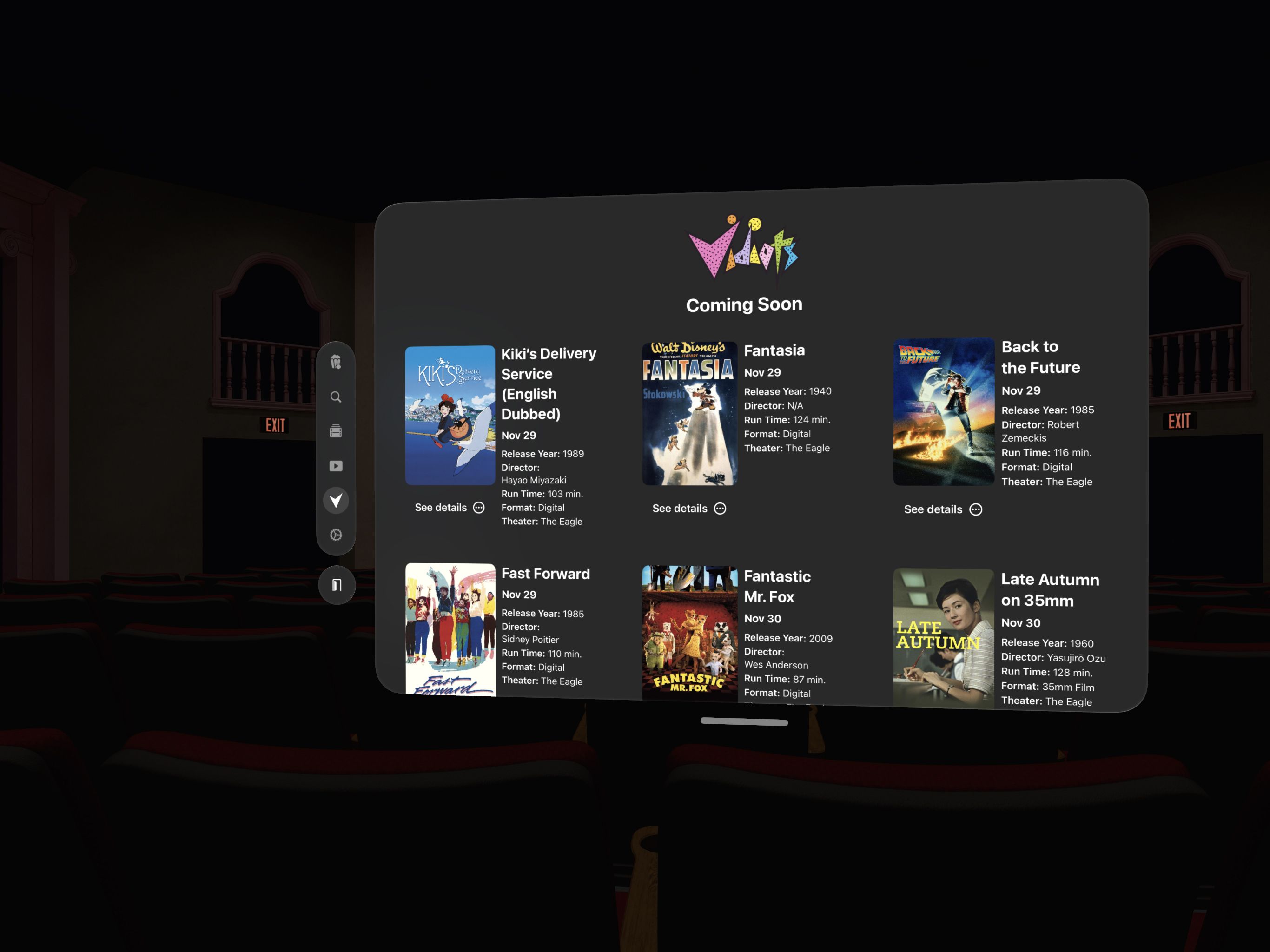
In the Planetarium, tapping the 🍿 “Popcorn” icon allows you to select from all of the fulldome options.
Adjusting for comfort
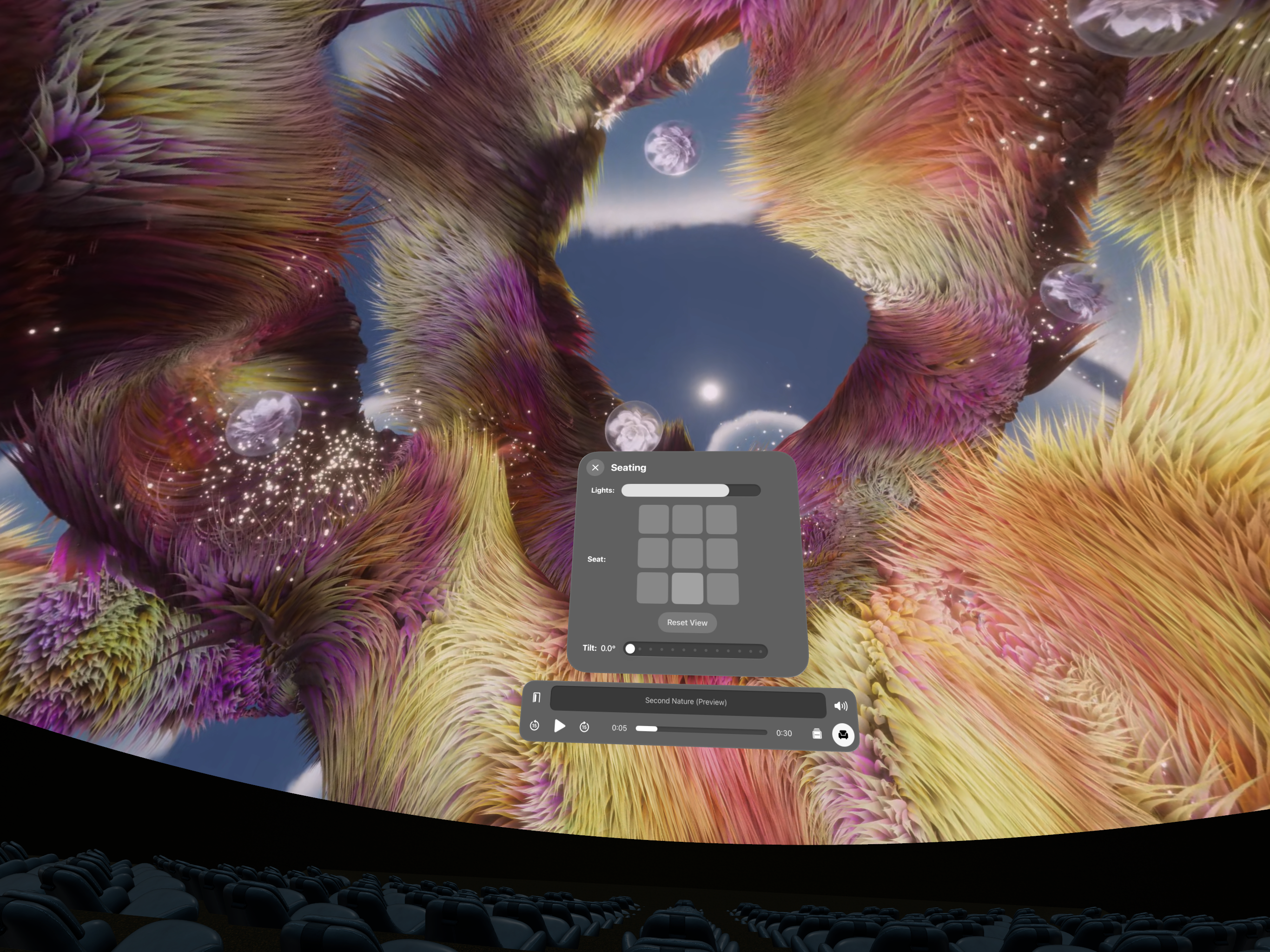
To reposition your view, tap the💺“Seat” icon to choose from three rows and aisles. You can also adjust venue lighting.
To watch while lying down, adjust the "Theater Tilt" to your preferred angle.
Changing venues
To change venues, tap the 🚪 icon on the playbar to exit from and select a new venue.
Your selected program will accompany you to the new venue, unless it’s a fulldome show.
SharePlay
Watch Together in Theater: The Ultimate Social Viewing Experience 💫
Connect with up to 4 friends on Vision Pro for private viewing parties in Theater!
Simply start a FaceTime call, select any movie, and enjoy synchronized playback together.
Everyone can control the experience while maintaining their personal viewing preferences.
Share Premium content, YouTube, and Plex libraries.
Visit Navigating the Theater Interface to go deeper into our features.