Navigating the Theater Interface
How to enjoy Theater to the max!
Last updated 10 months ago
The Theater interface is designed to be intuitive while maintaining the immersion of your viewing experience.
Home
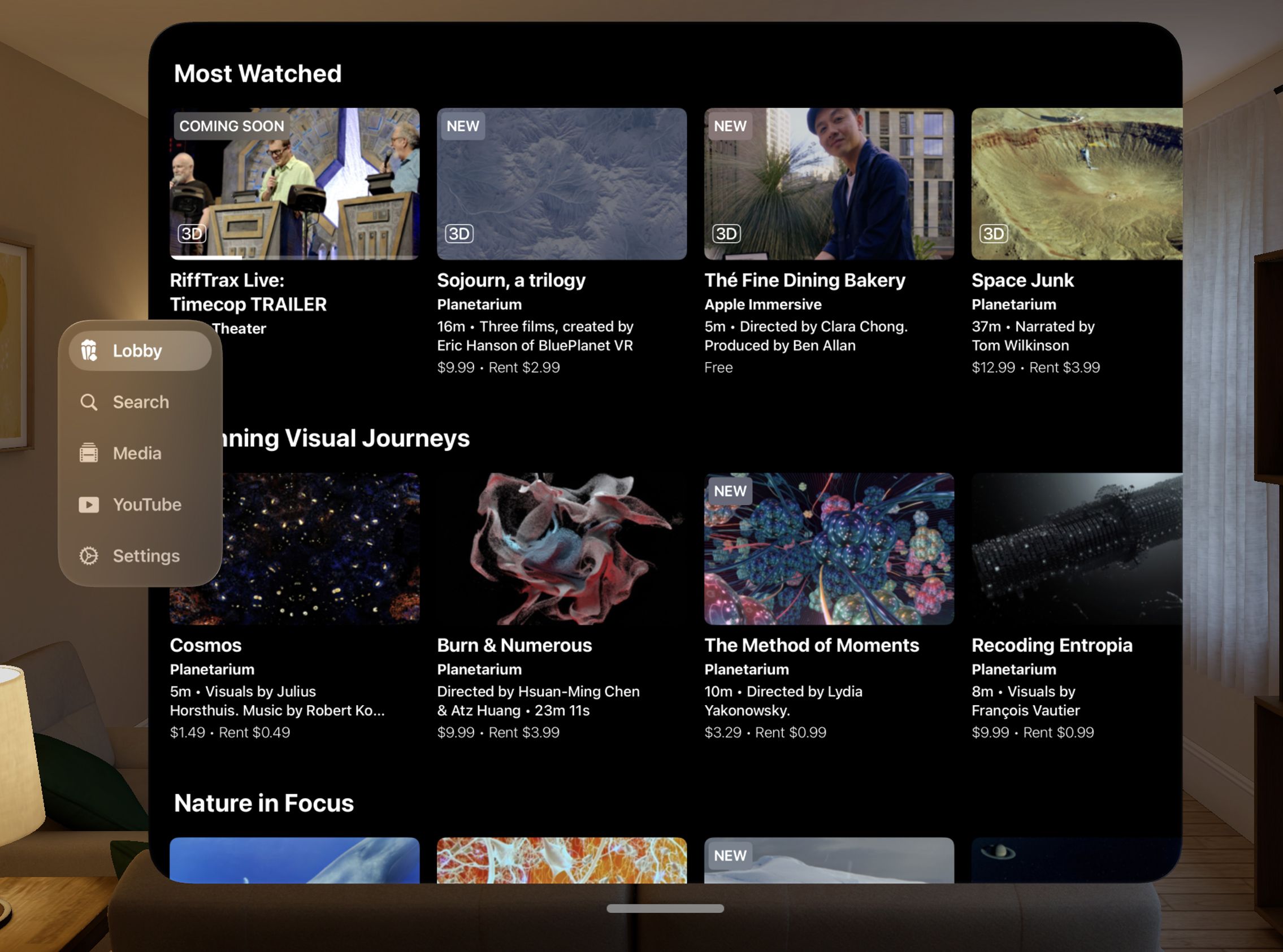
When you first launch Theater, you’ll see the 🍿Lobby home screen displaying:
Our featured premium movies and shows as well as curated selections
Theater environments you can enter: Primary, Eagle, Home and Planetarium
Themed sections such as “Jump Into 3D” and “Nature in Focus”.
On the left hand side, you’ll also find:
The 🔎 “Magnifying Glass” icon for searching with keywords or text
The 🎞️“Film” icon for accessing personal media and Plex libraries
The ⚙️ “Gear” icon for changing settings and finding our quick Help section
The YouTube icon where you can also log into your account
Note: Some YouTube programs are restricted and cannot be played in Theater
In-Theater Controls
While watching content in any theater environment:
Show/Hide Control Bar: Tap anywhere in your environment to reveal or hide the control bar
Playback Controls:
Play/Pause: Tap the center play/pause button
Skip forward/backward: Tap the 15-second skip buttons
Speed Control: Tap & hold the Play button to adjust playback speed
Progress bar: Drag to scrub through content
Additional Control Bar Options:
Captions: Turn on available captions
Tap the 🎞️ “Film” icon to view the available programming from 🍿Lobby, YouTube, Plex libraries Access and/or your personal media
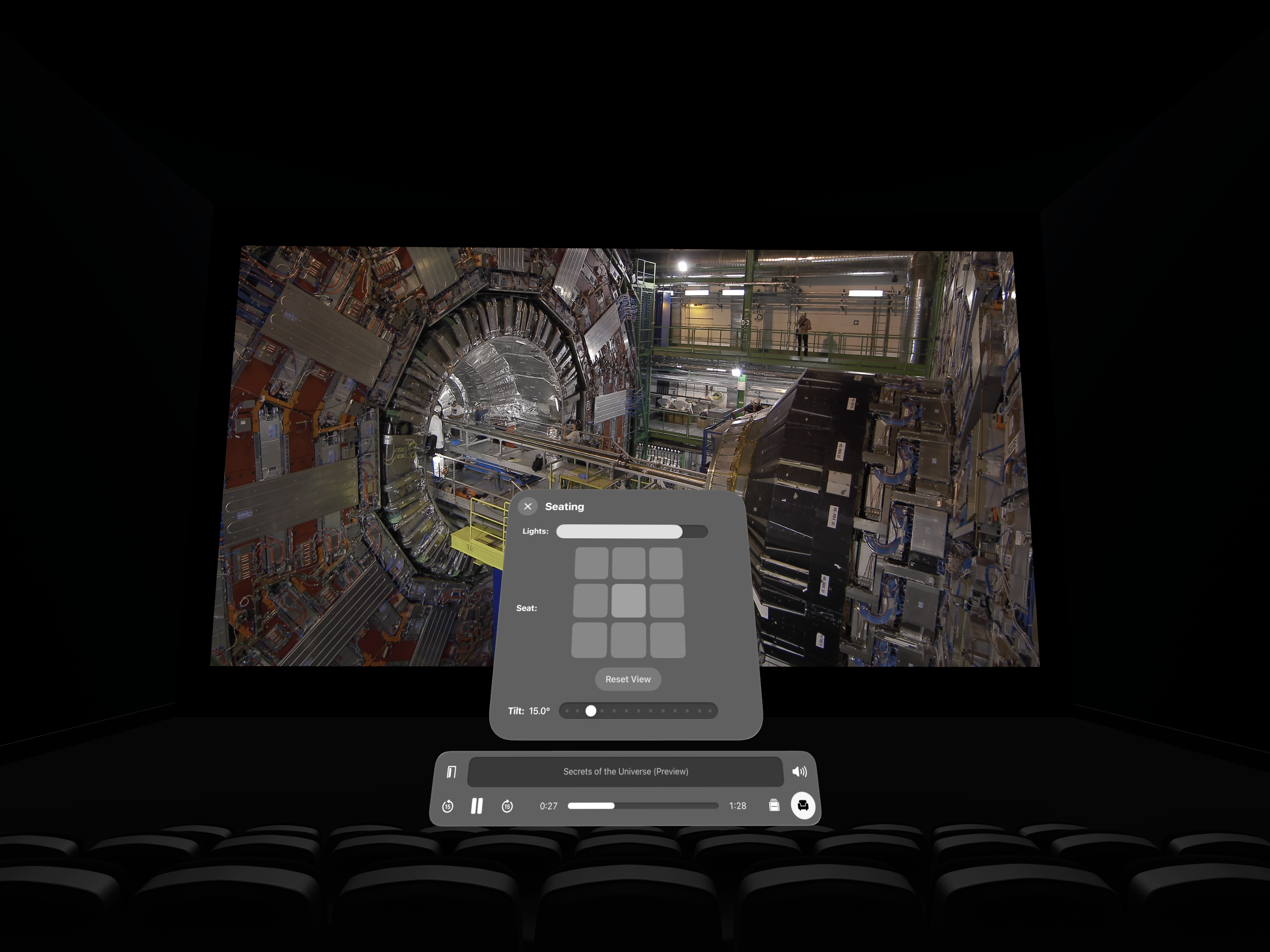
💺Seat Selection: Switch between different viewing positions, adjust the 💡lighting or tilt the entire theater to watch while lying down.
Unique Entertainment Options. Some theaters feature unique programming and playback options.
Planetarium: Tap the 🍿“Popcorn” and/or 🔎 “Magnifying” icons to browse fulldome content (Note: fulldome content can only be watched in the Planetarium.)
Eagle Theater: Tap the ”V” icon to access upcoming movies playing at the real-world Vidiots theater
Nest: Tap the 🎵 “Note” icon to jump to specific songs in the immersive album.
Entertainment Options
Premium Movies and Experiences
Browse our curated collection of premium movies
Preview titles before purchasing or renting
Long press on content to select a different theater environment (if compatible)
YouTube
Tapping the YouTube icon allows you to interact with the YouTube web site. You can log in to your account or otherwise search and play any available video.
Some channels limit access to videos inside our app.
👀 If you don’t see access to YouTube, you may not have purchased full access to Theater.
If you have purchased full access but do not see the YouTube icon, please email us.
Plex
To access a Plex library, tap the 🎞️ “Film” icon or Media section and then choose “Plex Media Server” from the options on the left hand side of the screen.
You can connect to any available Plex Media Server from inside most of our venues.
Note: Starting in 2025, Plex requires a subscription service to access remote servers.
Because Plex is a complex piece of software, please consult Using Plex for additional tips and troubleshooting help.
Personal Media
Tap the 🎞️ “Film” icon or Media section to add your own media to Theater.
You can select videos from iCloud and/or your Photos Library.
Theater supports spatial videos (MV-HEVC) but does not yet convert SBS videos into spatial media. For more details, consult Supported Content Sources and Formats
Customizing Your Experience
Environment Adjustments
Seat Selection: Tap the💺“Seat” icon to choose from different viewing positions
Lighting: Adjust venue lighting brightness using the horizontal slider
Adjust Theater Tilt to enjoy your venue while lying down.
Most users typically select between 15° or 30° when lying down.
Exiting and Navigation
Tap the 🚪“Door” to exit to the main Lobby, where you can also change venues.
Use your Vision Pro home gesture (look at palm and pinch) to exit the app
Notifications
You can customize how Theater keeps you informed about new content, upcoming events, and important updates:
From the main Lobby, tap the ⚙️ "Gear" icon to access Settings
Select "General" from the menu
Navigate to the "Notifications" section
Notification Options:
Push Notifications: Toggle on to receive immediate alerts on your device about new content and live events
Device Notification Settings: Fine-tune how notifications appear on your Apple Vision Pro
Email: Manage email notifications to stay updated on new Theater releases
For the best Theater experience, we recommend enabling notifications to:
Receive alerts when premium content is added
Get reminders for scheduled live events
Stay updated on new features and improvements
SharePlay
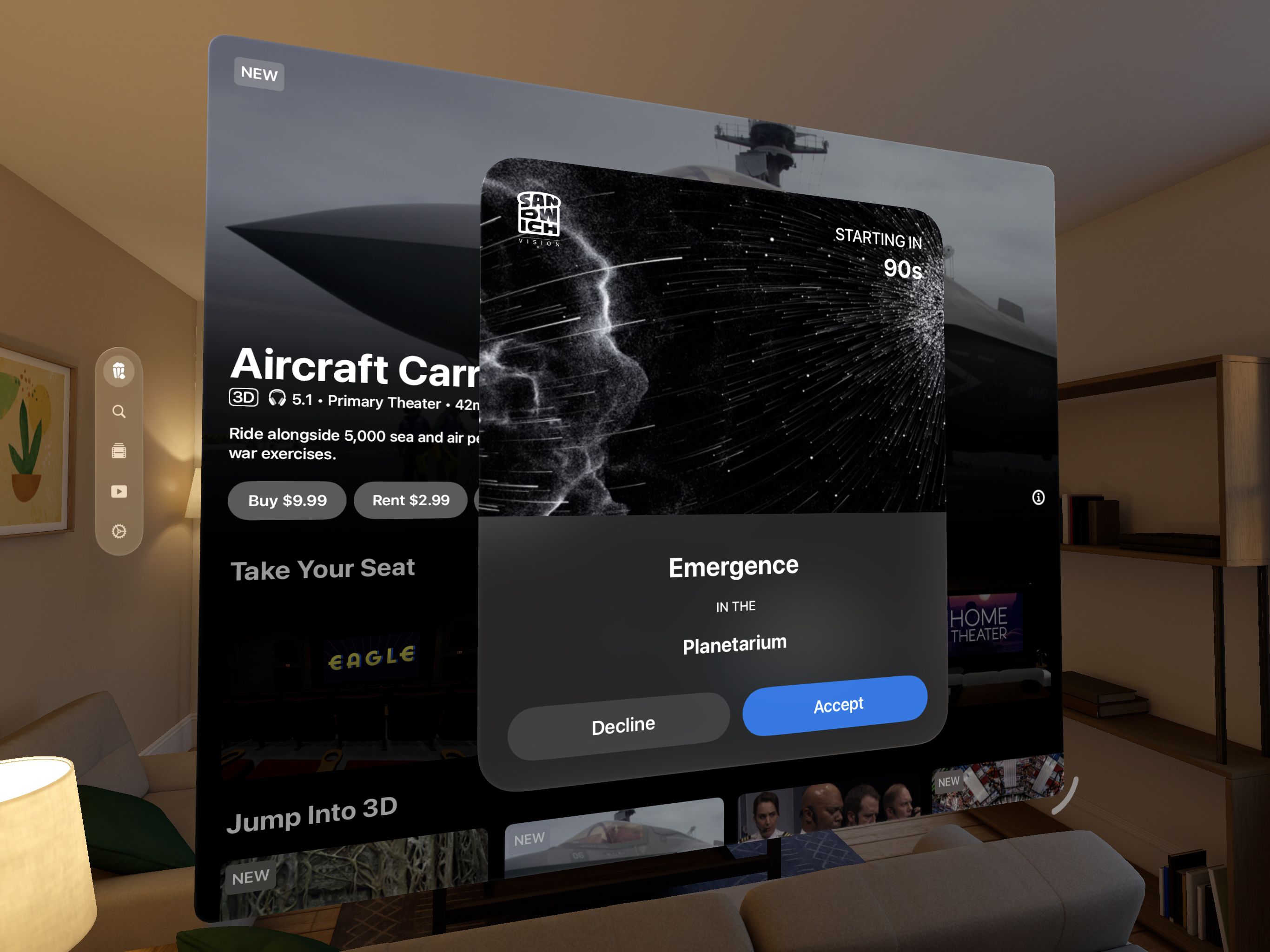
You can invite your contacts to join you in Theater for a private viewing party!
In your Vision Pro Home View, tap People in the tab bar, then tap New FaceTime with a fellow Vision Pro user. 🖐🏼visionOS allows up to 5 personas in the same session.
During the call, any movie you—or your guests—choose inside Theater can be viewed by everyone at the same time.
When a guest leaves a venue, playback continues for everyone inside the venue. If the host or person who initiated the FaceTime call leaves a venue, playback will temporarily pause. Any guest can resume playback.
Every guest can access the playbar to pause, fast forward or rewind. (Please be kind!)
The sound, lighting and seat choices only apply to individual users.
When a user chooses a new title to play while another is already playing, visionOS will ask that user if they want to REPLACE the previously selected show. Choosing “Replace Existing” will present users with the same invitation ticket.
You can SharePlay watch Theater Premium titles, YouTube and even your Plex library.
Note: personal media cannot be viewed in SharePlay. Add those files to your Plex library.
Need more help with a specific feature? Try our Common Issues and Solutions or Frequently Asked Questions pages.